Breakout Sessions
Start and End Session
- From the Options menu within a Webex Meeting, select Enable breakout sessions.
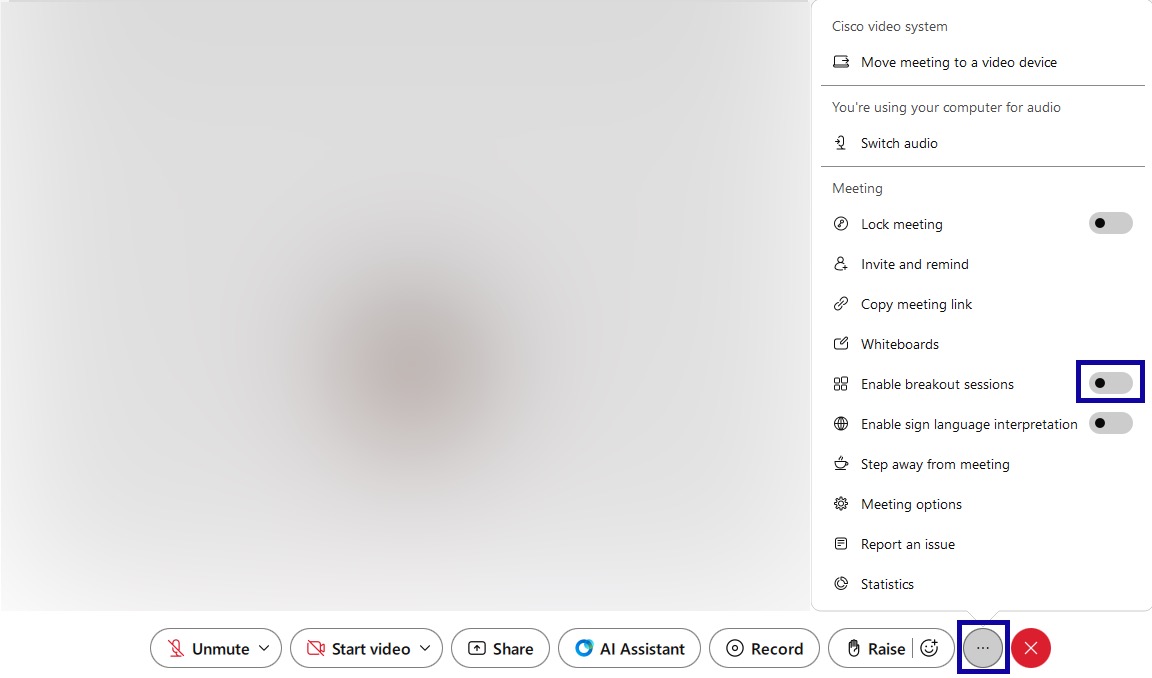
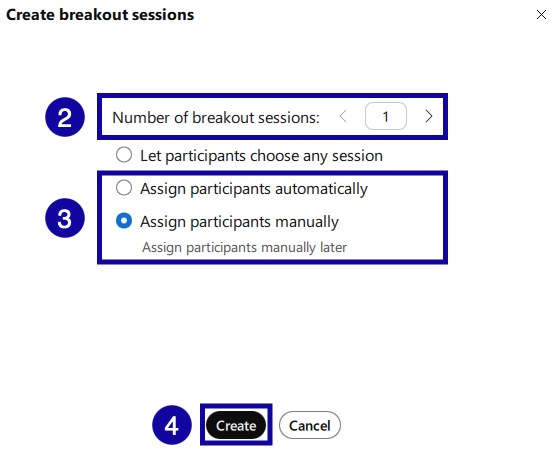
- From the Create breakout sessions menu, set the number of breakout sessions.
- Select to assign participants automatically or manually.
- Select Create.
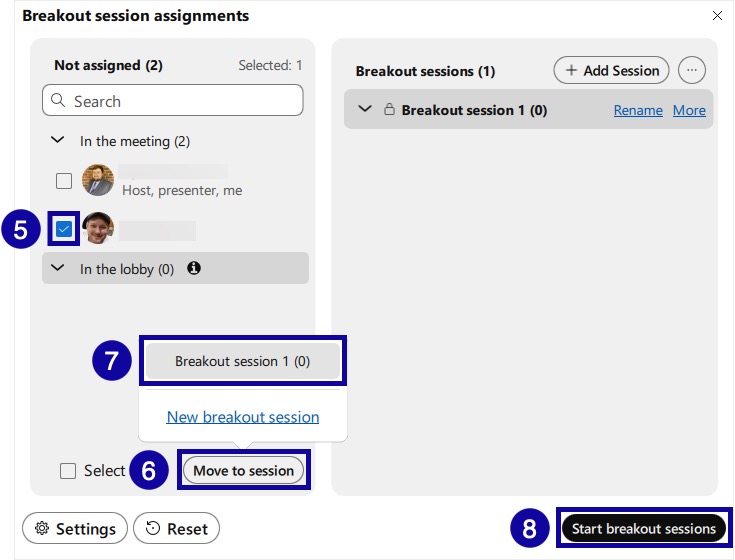
- To manually assign a participant to a session, select the checkbox for the participant to be moved.
Note:
Move multiple users to a single breakout session at one time by selecting the checkbox each users.
- Select Move to session.
- Select the session from the list.
- To start breakout sessions, select Start breakout sessions.
- To end breakout sessions, select End all breakout sessions.
Note:
All participants will return to the main meeting room.

Manage Participants
Manage Participants provide the ability to move participants between breakout sessions before the sessions start and/or in progress.
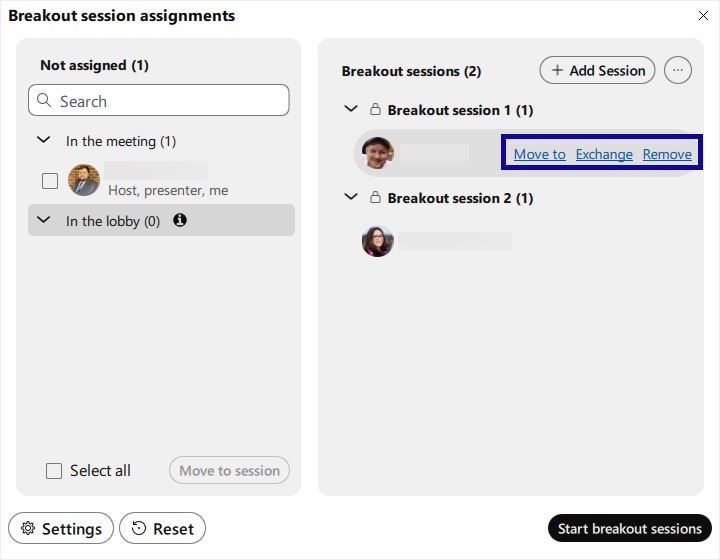
- Within a Webex Meeting, open the Breakout session assignment window by selecting the Breakout sessions button from the quick access controls.

- In the list of breakout sessions, locate and hover over the participant to be managed.
- Select Move to to move the participant to another session, Exchange to swap the participant with another in a different room, or Remove to remove the participant from all sessions.
Join or Leave Sessions
Join or Leave Sessions provide the ability to join breakout sessions to touch base with groups.
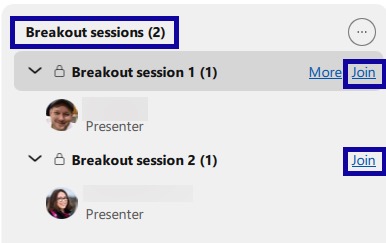
- Within a Webex Meeting, locate the Breakout sessions tab within the Participants panel and select Join.
- To exit a breakout session, select Leave Session located on the quick access toolbar within the breakout session.
