Lumi Study Support
Lumi Study Support provides recommended content topics and overall feedback based on incorrect answers from a quiz attempt. Instructors can also review AI-generated study support feedback messages and content recommendations sent to a user when evaluating a quiz attempt.
Note:
Lumi Study Support does not support quizzes that have more than 20 quiz questions and written response questions. Only auto-graded questions are supported.
- From the Assessments menu within a D2L course, select Quizzes.
- Locate and select one of the following:
- Select New Quiz.
- From the Actions dropdown menu next to the Quiz Title, select Edit.
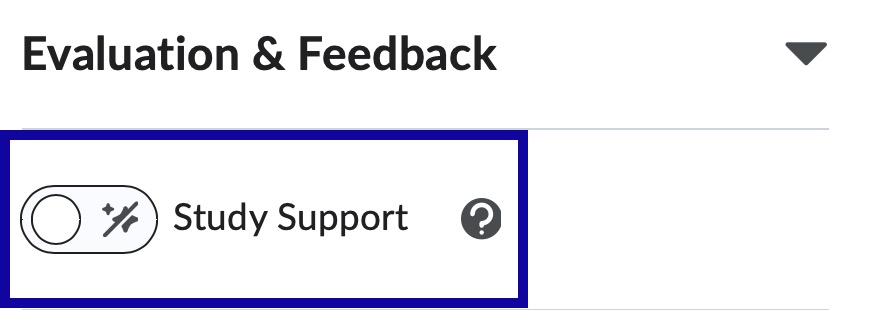
- Under Evaluation & Feedback, select the toggle to enable Study Support.
- Review the Study Support dialog as it checks if the quiz meets Study Support requirements. If the check is successful, select Next.
- Under Set up Study Support, select from the following:
- Include a generated overview of learners’ quiz attempt results: Lumi Study Support generates a Quiz Feedback Summary based on any Learning Outcomes
aligned with the quiz.
Note:
This option is only available when all quiz questions are aligned to learning outcomes and the same learning outcomes are aligned to at least one supported content topic and the option Suggest from any course activity is selected.
- Suggest from selected course activities: Choose from a list of Content activities. Lumi Study Support will only look at the selected activities when making content recommendations.
- Suggest from any course activity: Lumi Study Support looks at all course content activities when making content recommendations.
Note:
This option requires all quiz questions to be aligned to learning outcomes and the same learning outcomes must be aligned to at least one supported content topic.
- Include a generated overview of learners’ quiz attempt results: Lumi Study Support generates a Quiz Feedback Summary based on any Learning Outcomes
aligned with the quiz.
- Configure any additional Evaluation & Feedback settings and select Save and Close.
Note:
Quizzes with the Study Support enabled are denoted with the spark icon.