Lumi Question
Lumi Question provides assistance to create questions for the Question Library, which can be added to quizzes.
- From the Assessments menu within a D2L course, select Quizzes.
- Select the Question Library tab.
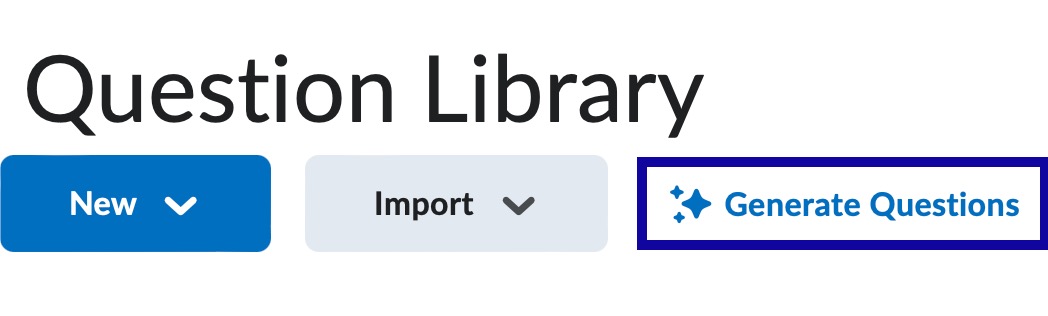
- From the Question Library page, select Generate Questions.
- Select the Number of Questions to generate.
- Select the Question Type.
- Optional: Select a Bloom's Taxonomy level appropriate for your assessment goals. If Bloom’s Taxonomy is unnecessary, leave the field set to Select Level.
- Optional: Select Include Feedback to have Lumi generate feedback for question answer options.
- In the Generate Questions dialog, select a Question Source. Based on the Question Source selected, perform the following actions:
- If you select Course Activities:
- Select Select Course Activities.
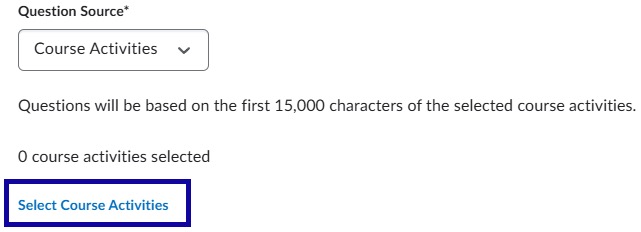
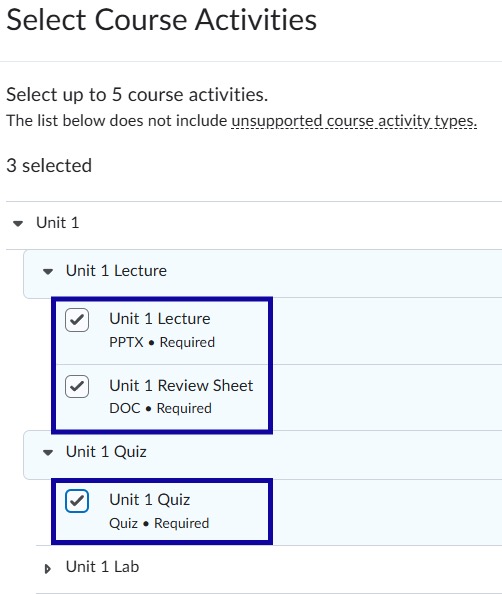
- In the Select Course Activities dialog, select the checkbox(es) for up to five Course Activities to generate questions. Optionally, select edit the
source text to edit the text for more precision on the question generation.
- Select Select Course Activities.
- If you select Custom Text, enter text in the Source Text field.
- If you select Course Activities:
- Select Generate.
- Select Pending Review for the first quiz question to open the Review Question dialog.
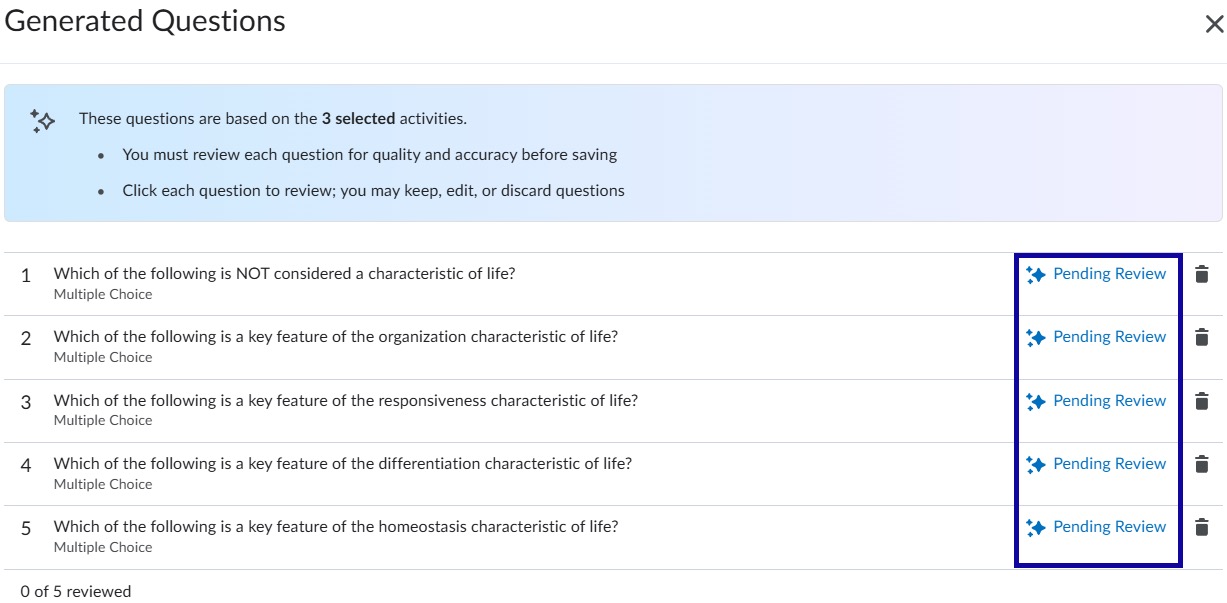
- After reviewing and editing a quiz question, select one of the following:
- Select Keep and Next to keep the current quiz question and review the next question.
- Select Discard and Next to delete the current quiz question and review the next question.
- Select Close This Question to return to the generated list of questions.
- After reviewing the last quiz question, select one of the following:
- Select Keep and Finish to keep the current quiz question and return to the generated list of questions.
- Select Discard and Finish to delete the current quiz question and return to the generated list of questions.
- Select Close This Question to return to the generated list of questions.
- In the Generated Questions dialog, select Save to Section. If any of the questions are unnecessary, select Cancel and Discard Questions.
- Select Save to Current Section or Create New Section for your quiz questions.
- Select Save.
Note:
Questions generated with AI will appear within the Question Library and marked with spark icon indicators to denote questions were AI-generated and human reviewed, or human edited.