Study Support provides recommended content topics and overall feedback to students based on incorrect answers on a quiz attempt. Instructors can also review AI-generated feedback messages and content recommendations sent to a user when evaluating a quiz attempt.
Note:
Study Support does not support quizzes that have more than 20 quiz questions and written response questions. Only auto-graded questions are supported.
-
Step 1
From the Assessments menu within a D2L course, select Quizzes. -
Step 2
Locate and select one of the following:
- Select New Quiz.
- From the Actions dropdown menu next to the Quiz Title, select Edit.
-
Step 3
Under Evaluation & Feedback, select the toggle to enable Study Support.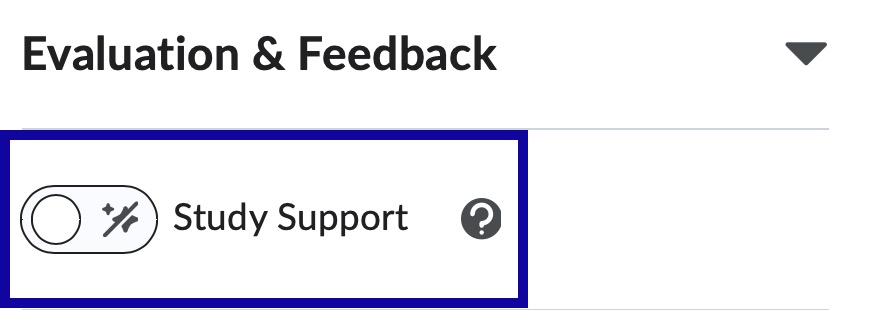
-
Step 4
Review the Study Support dialog as it checks if the quiz meets Study Support requirements. If the check is successful, select Next. -
Step 5
Under Set up Study Support, select from the following:
- Include a generated overview of learners’ quiz attempt results: Generate a Quiz Feedback Summary based on any Learning Outcomes aligned with the
quiz.
Note:
This option is currently not available.
- Suggest from selected course activities: Select from a list of Content activities. Lumi Study Support will only look at the selected activities when making content recommendations.
- Suggest from any course activity: Looks at all course Content activities when making content recommendations.
Note:
This option is currently not available.
- Include a generated overview of learners’ quiz attempt results: Generate a Quiz Feedback Summary based on any Learning Outcomes aligned with the
quiz.
-
Step 6
Configure any additional Evaluation & Feedback settings and select Save and Close.
Note:
Quizzes with the Study Support enabled are denoted with the spark icon in the Quizzes list.