Generate Discussion Ideas provide discussion prompts generated from existing course content and learning materials to strengthen student interaction and participation.
-
Step 1
From the Assessments or Communication menu within a D2L course, select Discussions. -
Step 2
Locate and select one of the following:
- From the New dropdown menu, select New Topic.
- From the Actions dropdown menu next to the Topic Title, select Edit Topic.
-
Step 3
On the Topic page, select Generate Discussion Ideas.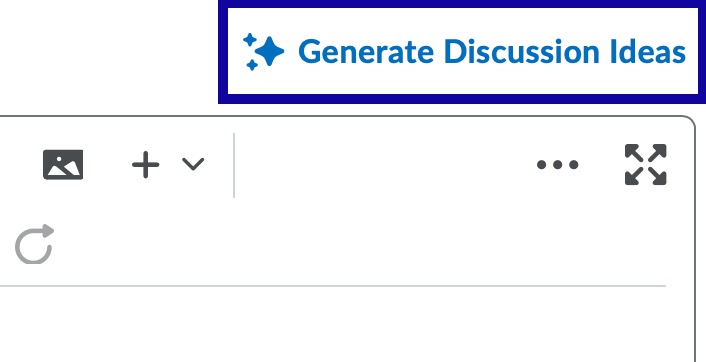
-
Step 4
Select the Number of Ideas to generate. -
Step 5
Optional: Select a Bloom's Taxonomy level appropriate for your assessment goals. If Bloom’s Taxonomy is unnecessary, leave the field set to Select Level. -
Step 6
Optional: Enter additional instructions to guide focus, tone, audience, style, etc. -
Step 7
Select an Idea Source from the following options:
- Course Activities: Discussion prompts will be generated based on existing course activities. Select Select Course Activities, then select the checkbox for each item to be included.
- Custom Text: Discussion prompts will be generated based on texted entered into the text field box.
-
Step 8
Select Generate. In the Suggested Ideas dialog, a list of discussion ideas is generated. -
Step 9
Select the idea to use for discussion. -
Step 10
Select Insert.
Note:
If you are editing an existing discussion topic, select Proceed in the pop-up dialog.
-
Step 11
Fill in discussion topic details, such as the Topic Title and Grade Out Of. -
Step 12
Select to make the discussion visible to students. -
Step 13
Select Save.