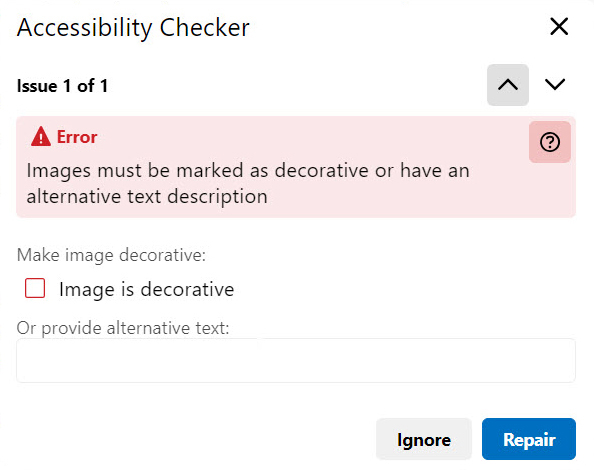
D2L Accessibility Checker provides instructors the ability to create accessible HTML content in D2L, scan and identify potential accessibility issues, and offer suggestions for improvement.
-
Step 1
Locate and type or copy/paste content into the HTML Editor. -
Step 2
Select the More Actions icon and then select the Check Accessibility icon to review the HTML content for accessibility compliance.
-
Step 3
The Accessibility Checker will indicate if any issues are detected. If issues are detected the Accessibility Checker will offer suggestions to fix the identified accessibility issue(s). -
Step 4
If no issues are detected, a message will appear that indicates the content meets accessibility standards.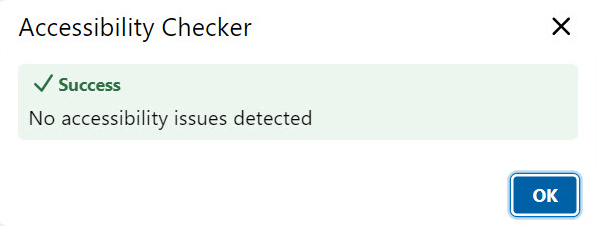
-
Step 5
If issues are detected, a message will appear that indicates how the content does not meet accessibility standards and suggests a way to fix the issue.
- If applicable, fix the error inside the tool and select Repair.
- Some errors cannot be fixed inside the tool. Select X to close the tool and fix the issue manually.
- Use the arrows in the top right to move between error.