Add Alt Text to Images
When an image is inserted into the HTML Editor in D2L, using Insert Image, users will be promoted to provide alternative text. Alternative text, also known as alt text, should provide a clear text alternative of the image for screen reader users.
-
Step 1
From within a D2L course, locate and select the item (Assignment Folder, Announcement, Discussion, etc.). -
Step 2
From the HTML Editor toolbar, select Insert Image.
-
Step 3
Select My Computer.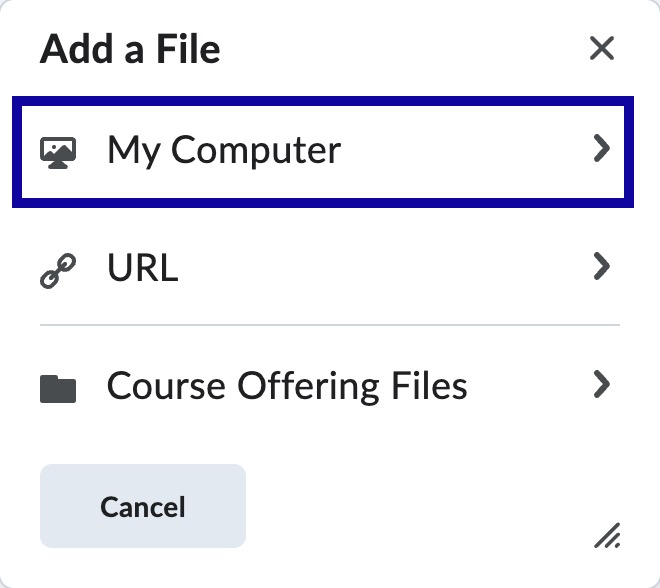
-
Step 4
Select Upload, locate and select the image file to be uploaded. -
Step 5
Select Add.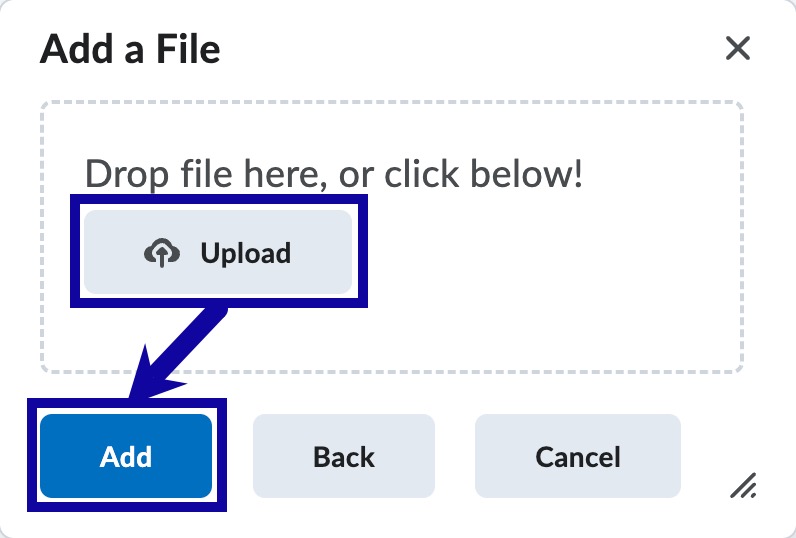
-
Step 6
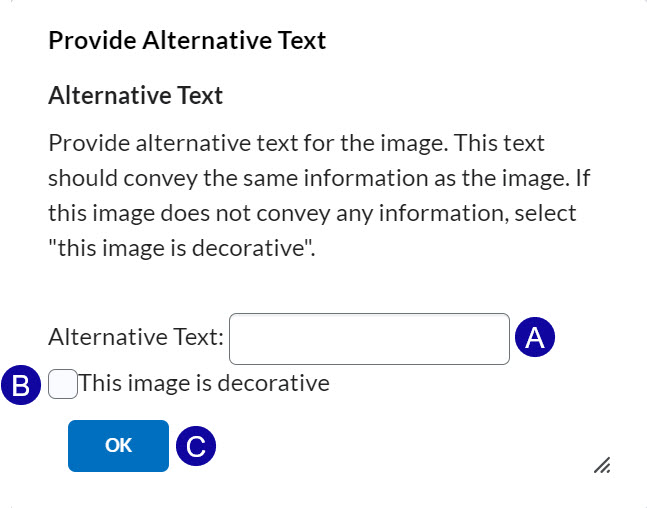
On the Provide Alternative Text pop-up, enter Alternative Text or select the checkbox to indicate This image is decorative.
- Enter Alternative Text to describe the image.
- If the image is decorative, select the checkbox for This image is decorative.
- Select OK.
-
Step 7
Select Save and Close.
Edit Alt Text on an Existing Image
-
Step 1
From within a D2L course, locate and select the item (Content Page, Assignment Folder, Announcement, Discussion, etc.) containing the image. -
Step 2
Select Edit.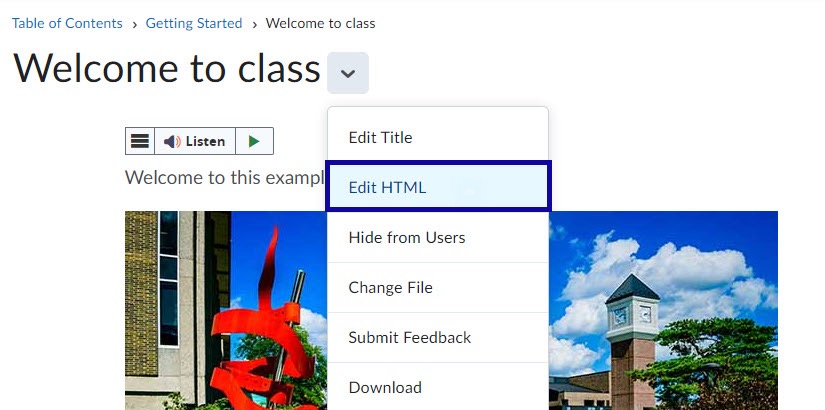
-
Step 3
Select the image to display the image options menu.
-
Step 4
Select the Image Options icon.
-
Step 5
Update the alternative text via the Alternative Description field.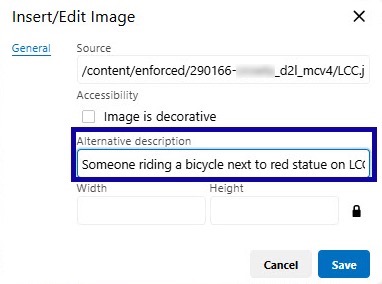
-
Step 6
Select Save.
Note:
Editing the alternative text in this manner does not edit/update the title of the image. The title appears when a user hovers a mouse over the image. To update the title of the image, users will need to access the HTML source code.