Edit Media provides the ability to Set In, Set Out, and Split features to adjust the start and end of a video, as well as remove a segment from the middle of a video.
Set In and Set Out
-
Step 1
From the Online Tools menu within My Home page, select My Media. -
Step 2
Locate and select the video thumbnail and/or video title to open the video. -
Step 3
From the Actions dropdown menu, select Launch Editor.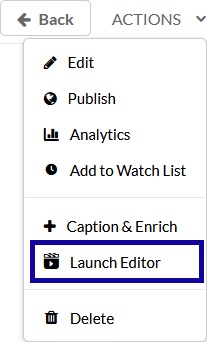
-
Step 4
Locate the Media Timeline. -
Step 5
Move the bars on the ends of the Media Timeline to the beginning and/or end of the video.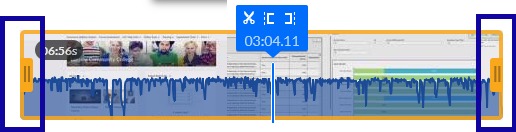
-
Step 6
Select Save.
Split
-
Step 1
From the Online Tools menu within My Home page, select My Media. -
Step 2
Locate and select the video thumbnail and/or video title to open the video. -
Step 3
From the Actions dropdown menu, select Launch Editor. -
Step 4
Locate the Media Timeline. -
Step 5
Select the location on the Media Timeline to move the Real Time Marker to that location. -
Step 6
Select the Scissor icon on the Real Time Marker to divide the video into sections.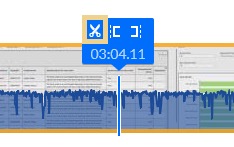
-
Step 7
Move the Real Time Marker to the end of the section to chop from the Media Timeline.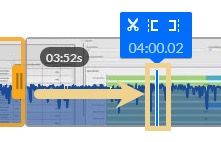
-
Step 8
Select the Scissor icon on the Real Time Marker to divide the video into three sections.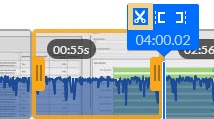
-
Step 9
Select the section to remove and select the Delete icon.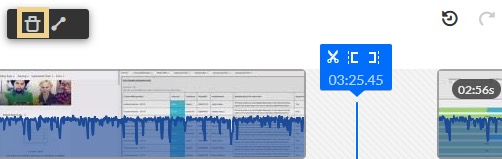
-
Step 10
To create a smoother transition between the sections, select the Fade In/Out icon.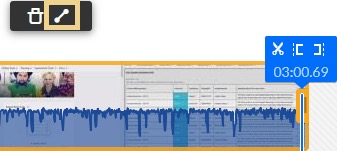
-
Step 11
To add the fade to the end of section, enter a number of seconds to Fade Out.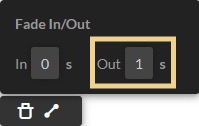
-
Step 12
Select Save.