Edit Closed Captions
Note:
Upon uploading media, captions will be automatically generated for the video. Captions must be reviewed and manually edited for 100% accuracy.
- From the Online Tools menu within My Home page, select My Media.
- Locate and select the video thumbnail and/or video title to open the video.
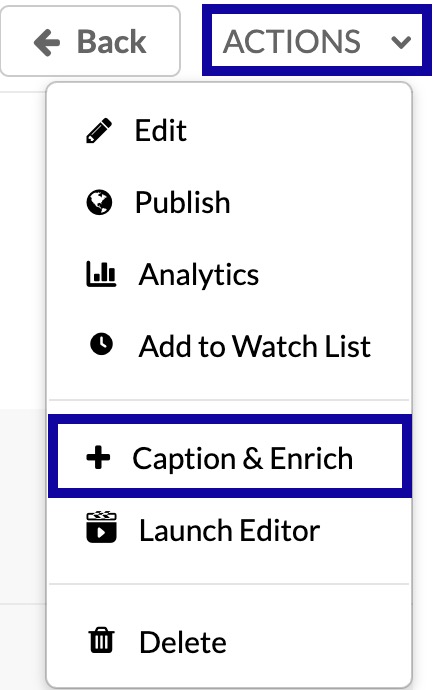
- Locate and select the Actions menu below the video.
- From the Actions dropdown menu, select Caption & Enrich.
- From the Captions Requests area, when the Status reads Completed, select the Edit Pencil Icon.

- Edit captions and punctuation using the Closed Captions Editor by selecting the Play button in the player. This will start the video.
- As the video plays, review the captions to the left of the video and listen to make
sure that the captioned segments match what is being spoken in the video. If the captions
do not match, pause the video and edit the inaccurate caption to match what is being
said.

- Select Save.
- Adjust slider to reflect accuracy of captions.
- Select Save to save changes.