View and Correct Accessibility Issues Panel provides feedback and guidance to improve the accessibility of course files. The panel identifies detected accessibility issues, explains how they affect students, and provides step-by-step instructions to make improvements.
View Accessibility Issues
-
Step 1
From within a D2L course, select Content. -
Step 2
Locate the course file to view and correct accessibility issues. -
Step 3
Select the Accessibility Score Indicator for the course file to open the feedback panel.
-
Step 4
Review the accessibility score, issue description, and guidance on how to correct the issue.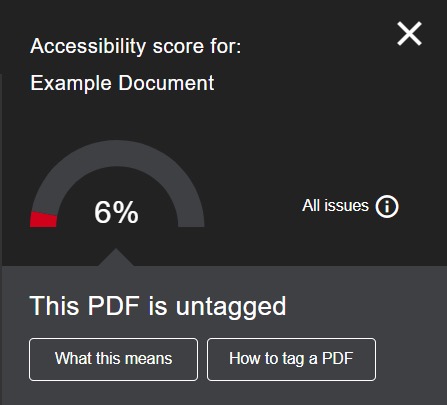
Correct Accessibility Issues
Some accessibility issues can be corrected directly in the Ally feedback panel. All other issues will need to be addressed within the program in which the file was created (i.e. MS Word, MS PowerPoint).
-
Step 1
Select an accessibility issue in the feedback panel. -
Step 2
Select How to… to view guidance on how to correct the issue.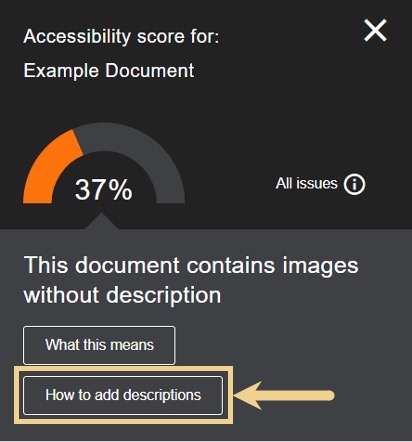
-
Step 3
If prompted, locate the original file or download the file out of D2L, and open the file within the program in which it was created. -
Step 4
Select your preferred software to view step-by-step instructions for correcting the issue.
-
Step 5
Correct all identified accessibility issues in the file. -
Step 6
Save the updated file. -
Step 7
Return to the feedback panel in D2L, and drag and drop or upload the updated file to replace the existing file.
-
Step 8
Verify all accessibility issue(s) have been corrected by confirming that the issue is no longer detected and the overall accessibility score for the file has increased.