-
Step 1
From within a D2L course, select Content. -
Step 2
From the Table of Contents, select a module. -
Step 3
From Update/Create dropdown menu, select Add Object from LOR.
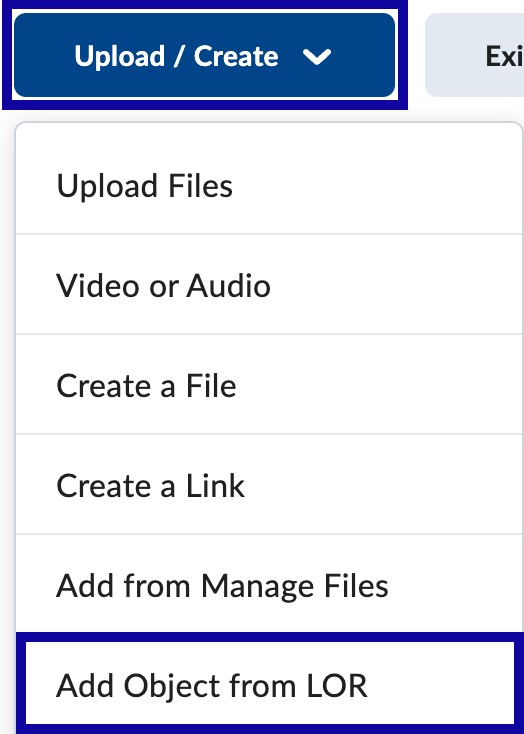
-
Step 4
In the Search For text field, enter the Title or Keywords of the object to link and select Search. -
Step 5
Select the radio button to add the item to the course.
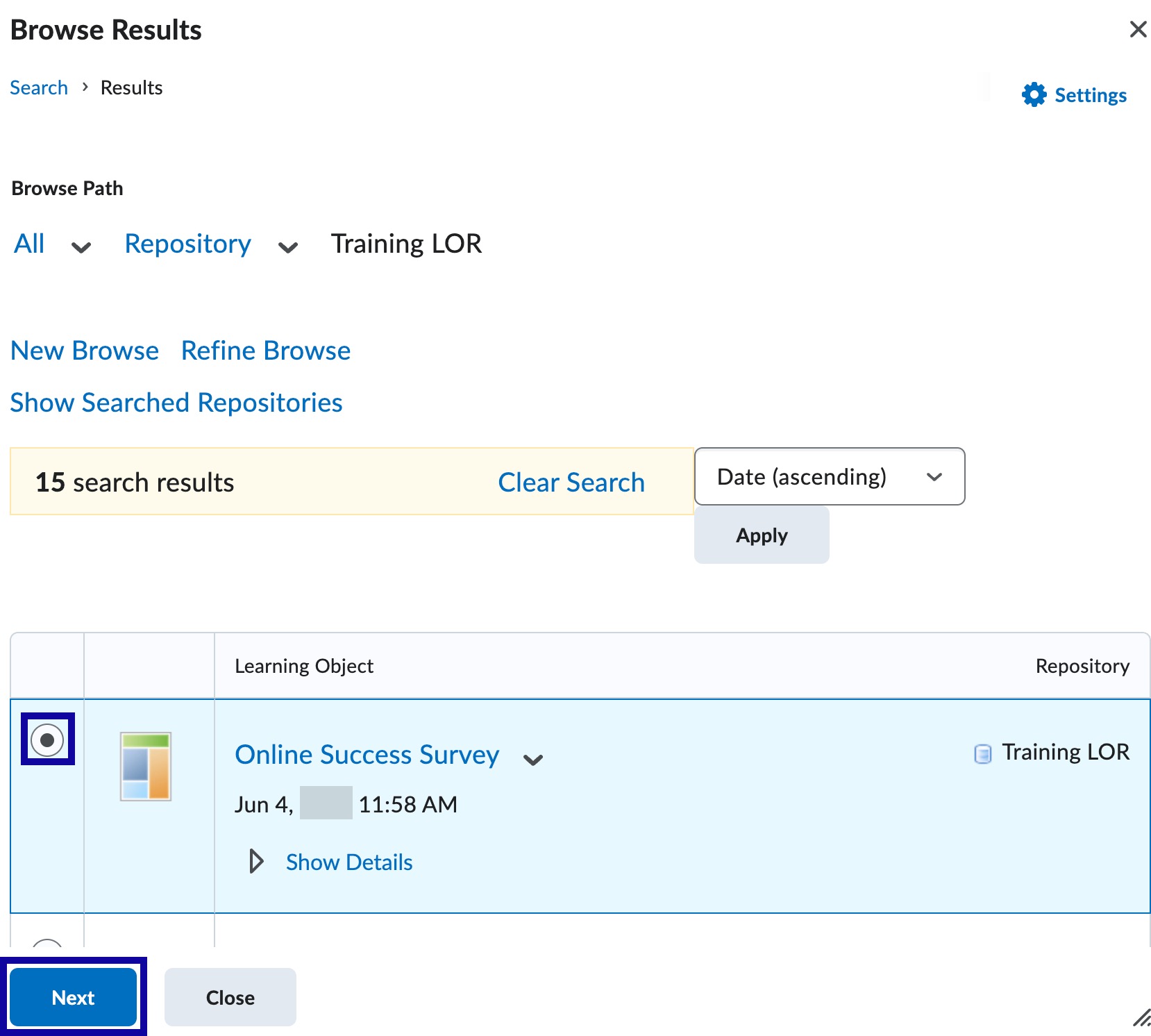
-
Step 6
Select Next. -
Step 7
Select the radio button next to the preferred linking method.
Note:
eLearning recommends to use the Dynamic Link to Newest Version option. This will keep the item up-to-date if any changes are made to the document in the LOR.
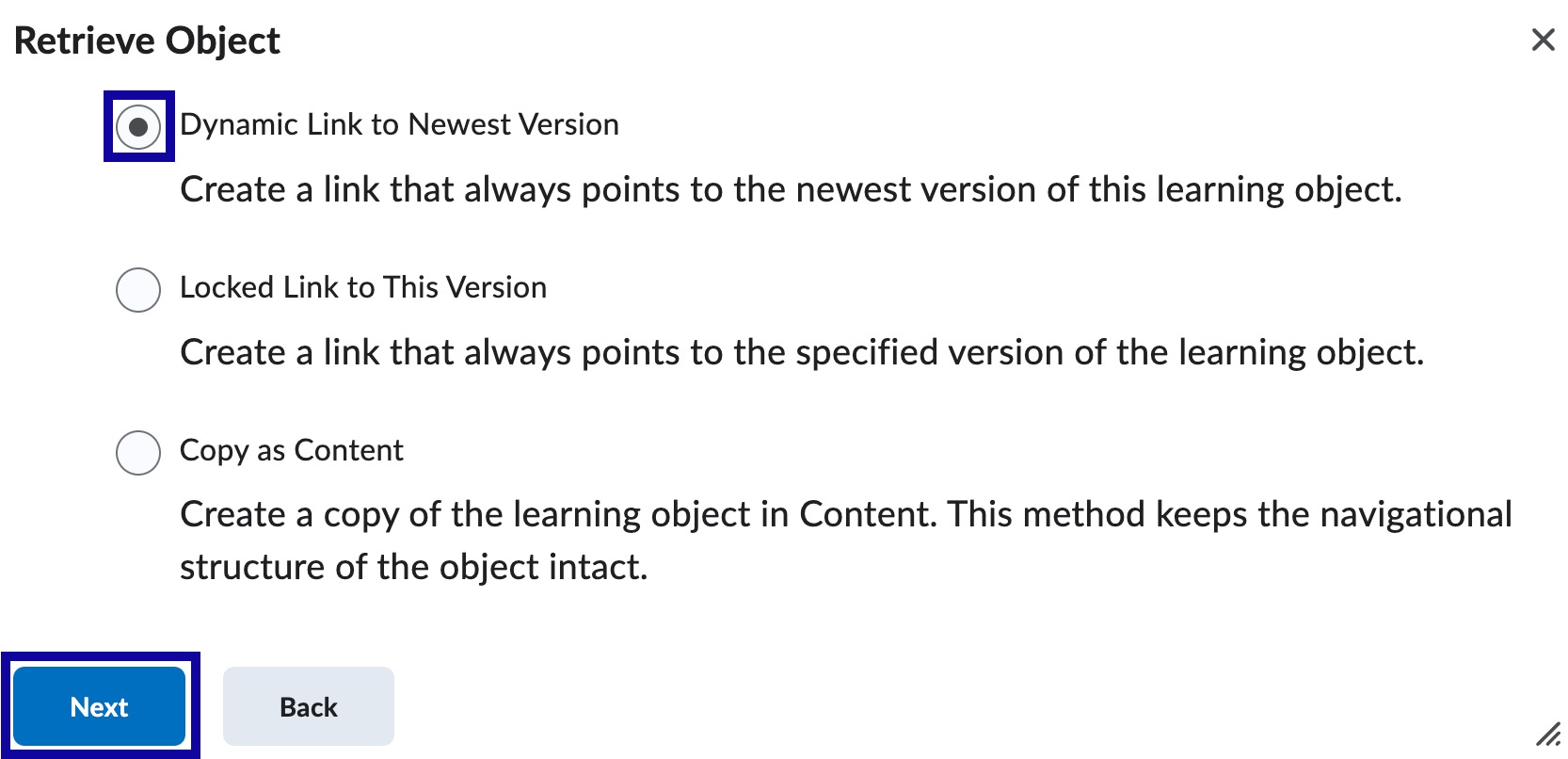
-
Step 8
Select Next. -
Step 9
Select Create Topic.