-
Step 1
From within a D2L course, select Content. -
Step 2
From the Table of Contents, select a Content module. -
Step 3
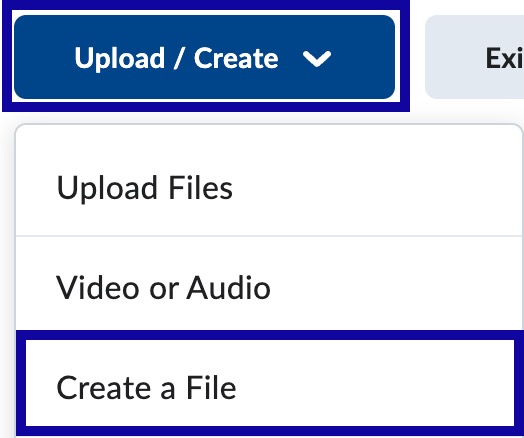
From within a Content module, select Upload/Create. -
Step 4
Select Create a File.
Note:
Edit an existing Content file is also available.
-
Step 5
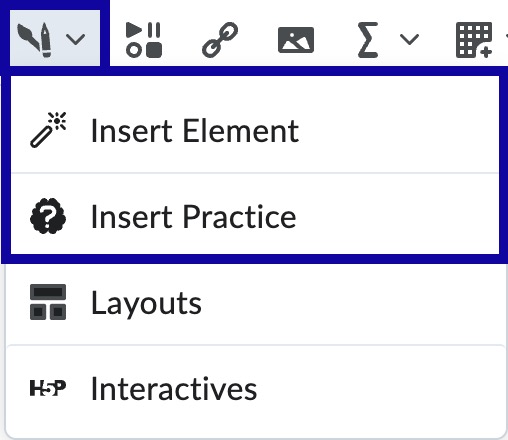
Select the Authoring Tools menu in the HTML Editor. -
Step 6
Select either Insert Element or Insert Practice from the dropdown menu.
- Insert Element: Tools to engage students with course content to deepen comprehension.
- Insert Practice: Tools to reinforce concepts with knowledge checks and immediate feedback.
-
Step 7
Select the Element or Practice to create from the available list. -
Step 8
Complete the required fields to configure the Element or Practice. When adding an Element, select Preview.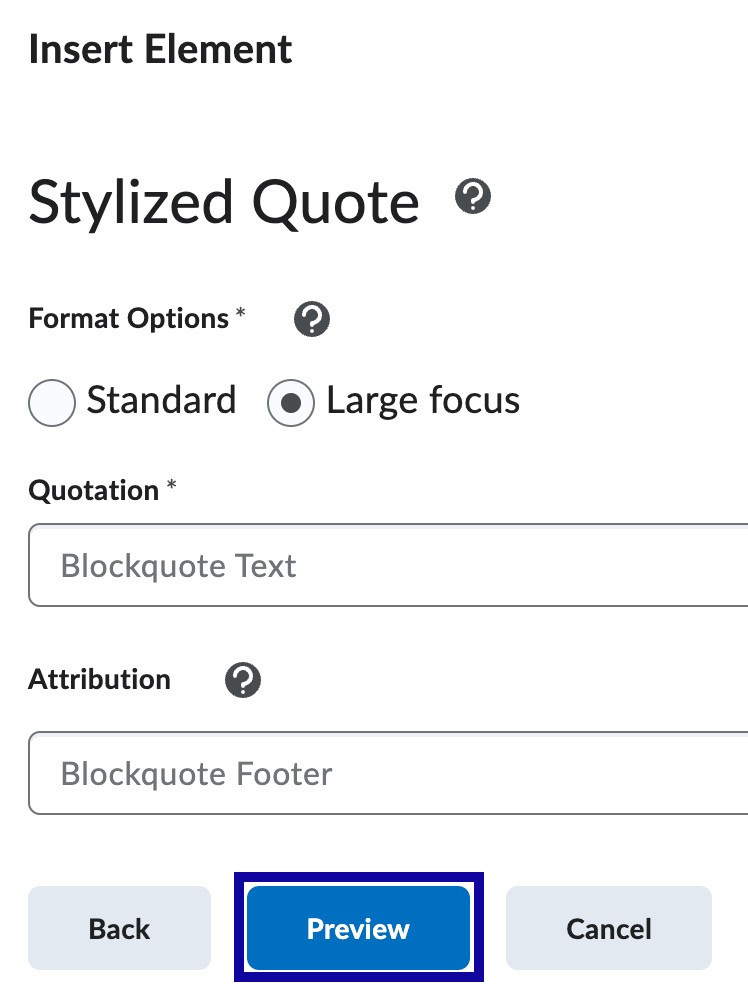
-
Step 9
When satisfied with the Element or Practice, select Insert and close the confirmation pop. -
Step 10
Continue to add content on the page. -
Step 11
Select Save and Close.