Course Import provides instructors the ability to import content from vendors, or created in a content creation program (like Respondus). The file containing the components must be in a format supported by the Import tool.
-
Step 1
From within a D2L course, select the gear icon from the Minibar. -
Step 2
Select Import/Export/Copy Components.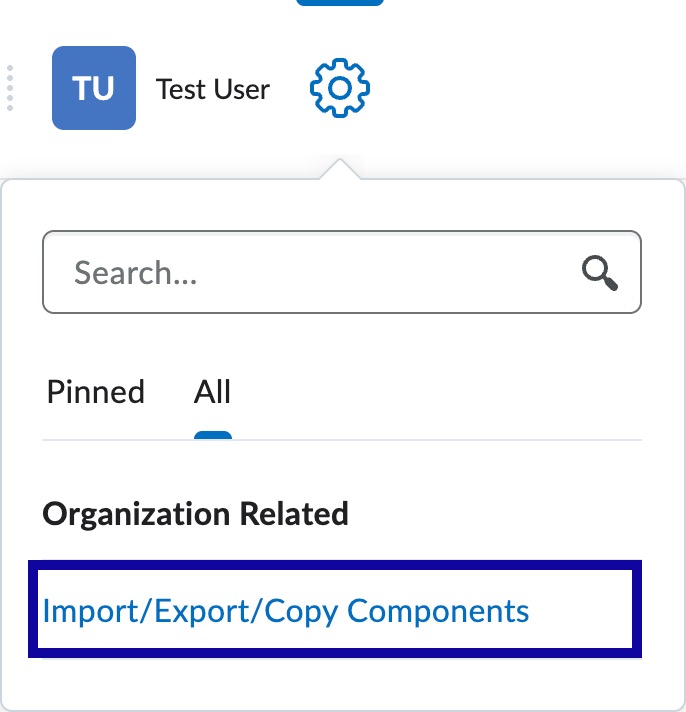
-
Step 3
Select the radio button to Import Components. -
Step 4
Select a component source: from Learning Object Repository or from a course package.
-
Step 5
Select Start.
- If from Learning Object Repository was selected:
- Use the Search For text field to locate the item to add to the course.
- Select the radio button for the item and select Next.
- Select a Retrieve Object option from the list:

- Select Next.
- From the Parent Module menu, select the module where the item should appear.

- Select Create Topic.
Note:
This process can take some time depending on the size of the file.
- If from a course package was selected:
- Select Upload.

- Locate the file to import and select Open.
Note:
Only .zip files or another archive format can be imported using the Course Package feature.
- Select Import All Components.

- The import process will begin. This process can take some time depending on the size
of the file.
Note:
Do NOT navigate away from the screen while the import is in process.
- Select Upload.
- If from Learning Object Repository was selected:
-
Step 6
After the import process is completed, select View Content.